Room Types
How to access:
To open the window, click Setup → Room Types in the application menu.
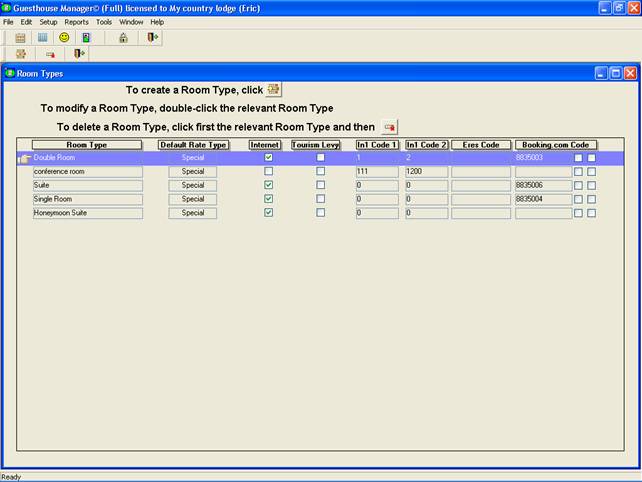
To define a new
room type, click  in
the lower toolbar, the Room
Type details window will be
opened to enter the new info.
in
the lower toolbar, the Room
Type details window will be
opened to enter the new info.
To edit an existing room type, double-click the row showing the room type to be updated, the Room type details window will be opened to update the info.
To delete an
existing room, click  in the toolbar, the info will be removed
after a confirmation.
in the toolbar, the info will be removed
after a confirmation.
Room Type Details window
This window shows all details of a room type

It contains the following information:
|
Label |
Meaning |
|
Type |
A unique label for the room type To change this, go to Tools → Rename Room Type |
|
Description |
Text containing information about the room type. It can contain any description of the different options for this room type such as the type of comfort, type of beds, type of bathroom, etc… |
|
Available on the Internet |
Whether or not this room type must be made available for online bookings |
|
Default Rate Type |
Default rate type when making new booking for this room type/ |
|
Apply Tourism Levy |
Apply tourism levy for all reservations of this room type. To set the Tourism Levy, go to Setup → Options → Establishment |
|
IN-1 Solutions Code |
See IN1 Interface guide for more details |
|
IN-1 Solutions Code 2 |
See IN1 Interface guide for more details |
|
Booking.com Code |
See Booking.com interface guide for more details |
|
Booking.com Sync |
See Booking.com interface guide for more details |
|
Booking.com Sync Rates |
See Booking.com interface guide for more details |
|
Rates structure |
This grid contains the standard rates, VAT inclusive for the different periods and beds occupied. To add a line in
the grid, click From: Contains the starting date of the period. This cannot be set but is calculated automatically based on ending date of the previous period. Until: Contains the ending date of the period. Min. Stay: Minimum number of nights required for this room type, rate type and period. It is not used for manually entering reservations, but is only distributed to online portals if it is supported by that portal Closed: Rate type/room type is not bookable during this period. It is not used for manually entering reservations, but is only distributed to online portals if it is supported by that portal Type: This information gives the user the option to set rates per person or rates per unit. Per person fixed. Only fill in “rate 1”. It will be automatically multiplied by the number of persons occupying the unit. Per Person Variable: “Rate 1” will be applied if 1 person is occupying the unit, “Rate 2” if 2 persons is occupying the unit, ... The rate will be automatically multiplied by the number of persons occupying the unit. Per Unit: “Rate 1” will be applied if 1 person is occupying the unit, “Rate 2” if 2 persons is occupying the unit, ... Apply On: The days of the week when this rate will be applied. See Rate Types for more information on how to set different weekend rates. 1: Contains the rate if the room is occupied by 1 person or if the rate is “per person fixed”, no matter how many persons stay in the room. 2: Contains the rate (per person or per unit, depending of the option in the 'Rates' field) if the room is occupied by 2 persons. 3: Contains the rate (per person or per unit) if the room is occupied by 3 persons. ....
The labels 1, 2, 3, ... are per default the number of adults staying in the room. However in Setup → Options → Bookings → Input, these labels can be changes and interpreted differently. E.g. ‘2A’ = 2 adults, ‘2A+1C’ = 2 adults + 1 child,... |
Click Update at the bottom of the window to confirm the changes and return to the previous screen.
The Cancel button will undo the changes and will also return to the previous screen.
Click Rates Sheet to show a printable overview of the rates structures as it has been set up.